 NextNeural
How to Set Up an Outbound Sales Campaign Using NextNeural's Voice AI
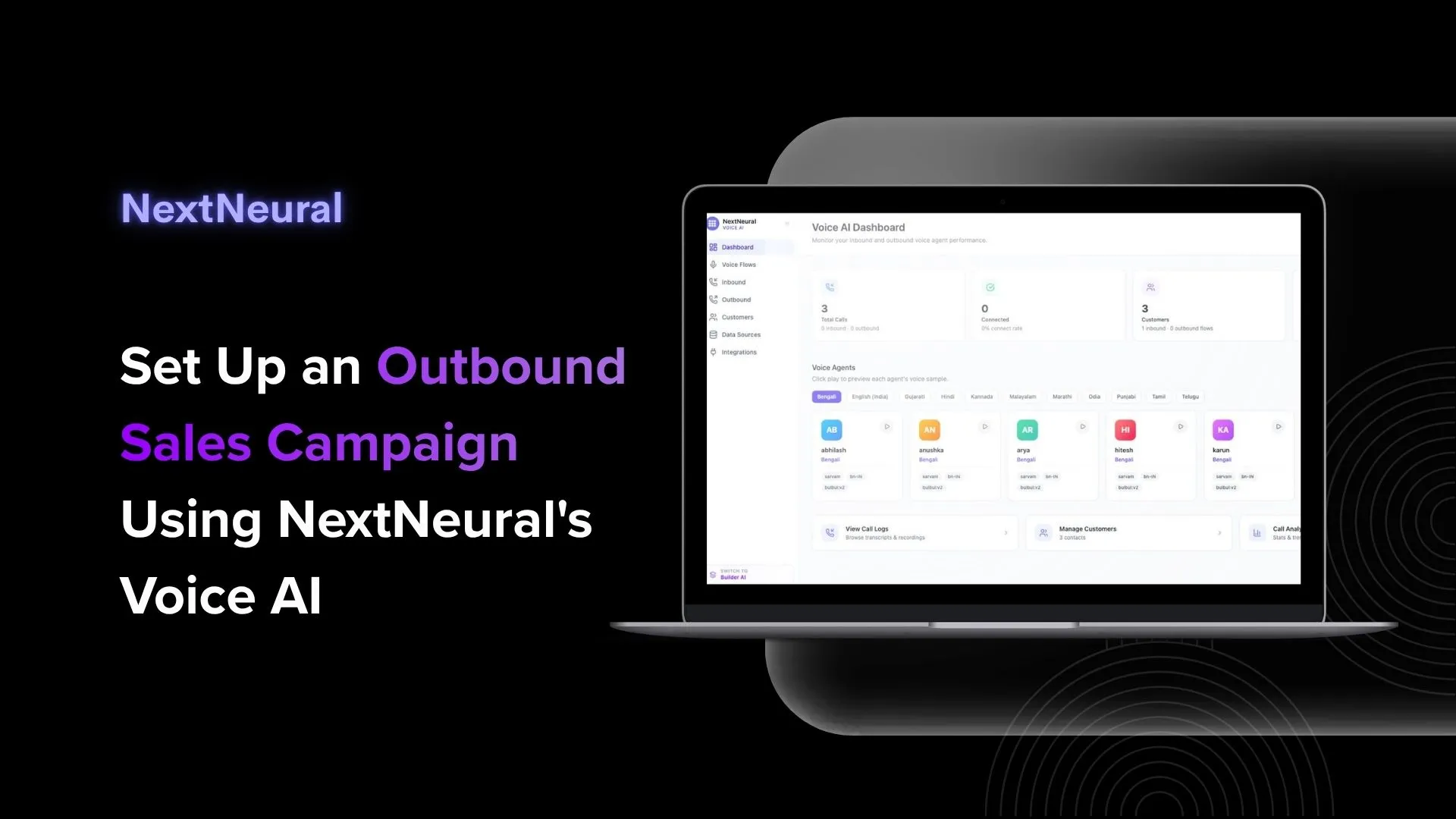
Is your sales team making a hundred calls a day? You’re working with a lean crew, yet half their time gets eaten up by calls that go unanswered, leads that go cold, and follow-ups that slip through the cracks. Industry averages for manual outbound calling sit around a 2% connection-to-conversion rate. That means 98 out of every 100 calls your team makes don’t result in a sale.
The drop-off problem is just as costly. A prospect who doesn’t pick up on Tuesday rarely gets called back on Wednesday. Your team moves on, the lead goes cold, and a deal that was genuinely warm dies quietly in a spreadsheet. And when business picks up and you need to scale outreach? You’re either hiring more people or burning out the ones you have.
AI-powered calling closes this gap without blowing your budget. NextNeural Voice AI lets you run outbound campaigns at scale, with consistent messaging, automatic follow-ups, and a cost per call that’s a fraction of what you’d spend on a human rep. Here’s how to get one set up.
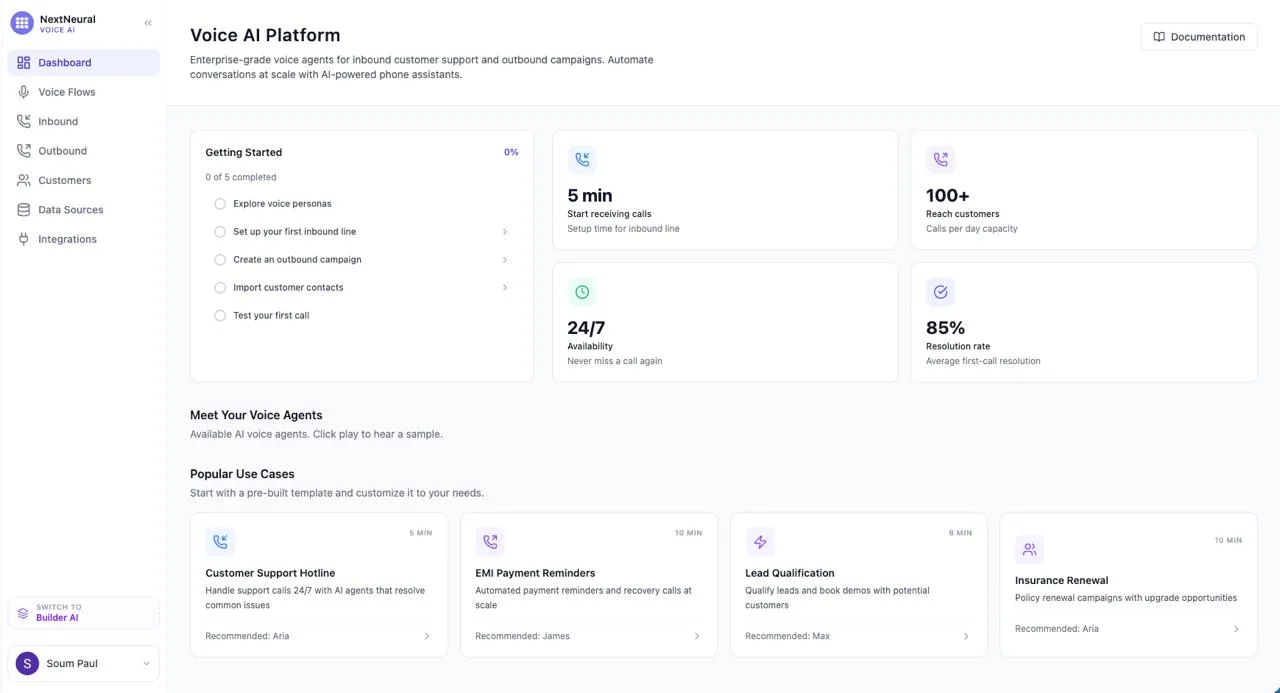
Why NextNeural Voice AI Makes Sense for Your Business
Before we get into the setup, here’s what you actually get out of this.
- Call templates out-of-the-box. NextNeural ships with a library of pre-built outbound call templates covering follow-up calls, lead qualification scripts, re-engagement campaigns, and appointment reminders. Each template is built around real outbound scenarios and can be customized to your product, pricing, and tone before a single call goes out.
- Your data stays on your infrastructure. For businesses where customer data governance is non-negotiable — financial services, healthcare, and enterprise clients with strict vendor policies — NextNeural can be deployed directly on your own infrastructure. You get all the capability of the platform without your call data, transcripts, or customer records ever leaving your environment.
- It connects to the CRM you’re already using. NextNeural integrates with your existing CRM so that call outcomes, transcripts, and contact updates flow back automatically without manual entry. A lead that picks up and shows interest gets flagged in your pipeline. One that doesn’t answer gets queued for follow-up. Your sales team sees the full picture in the tool they already live in.
- You don’t need a large sales team. NextNeural Voice AI can dial hundreds of customers a day on your behalf. You get the reach of a full sales floor without the headcount costs.
- You’re available to your customers round the clock. The platform runs 24/7, so if a customer calls at midnight, an AI agent picks up. You stop missing leads simply because it’s after hours.
- You can get up and running in minutes. Setting up an inbound line takes as little as 5 minutes. You’re not signing up for a weeks-long implementation project.
- You can talk to customers in their own language. With support for Bengali, Hindi, Tamil, Telugu, Marathi, Gujarati, and more, you can run campaigns in the regional language your customers actually prefer. That goes a long way in Tier-2 and Tier-3 markets.
- You only call the right people. The tag-based targeting system lets you segment customers by location, interest, or any other criteria you define. You’re not wasting calls on the wrong audience.
- You won’t accidentally blast your entire contact list. Campaigns save as drafts first. You or a supervisor reviews everything before a single call goes out — a meaningful safeguard when every customer relationship counts.
- You can plug in data you already have. Connect your existing PostgreSQL or MySQL database and your AI agent can reference live data during calls — pricing, inventory, customer history — without any manual prep.
Step 1: Get Your Foundation Ready
Set Up Your Data Sources
Before you launch any campaign, your AI agent needs to know what to say and who to say it to.
Head over to Data Sources on the left sidebar. You’ll see two tabs: Documents and Databases.
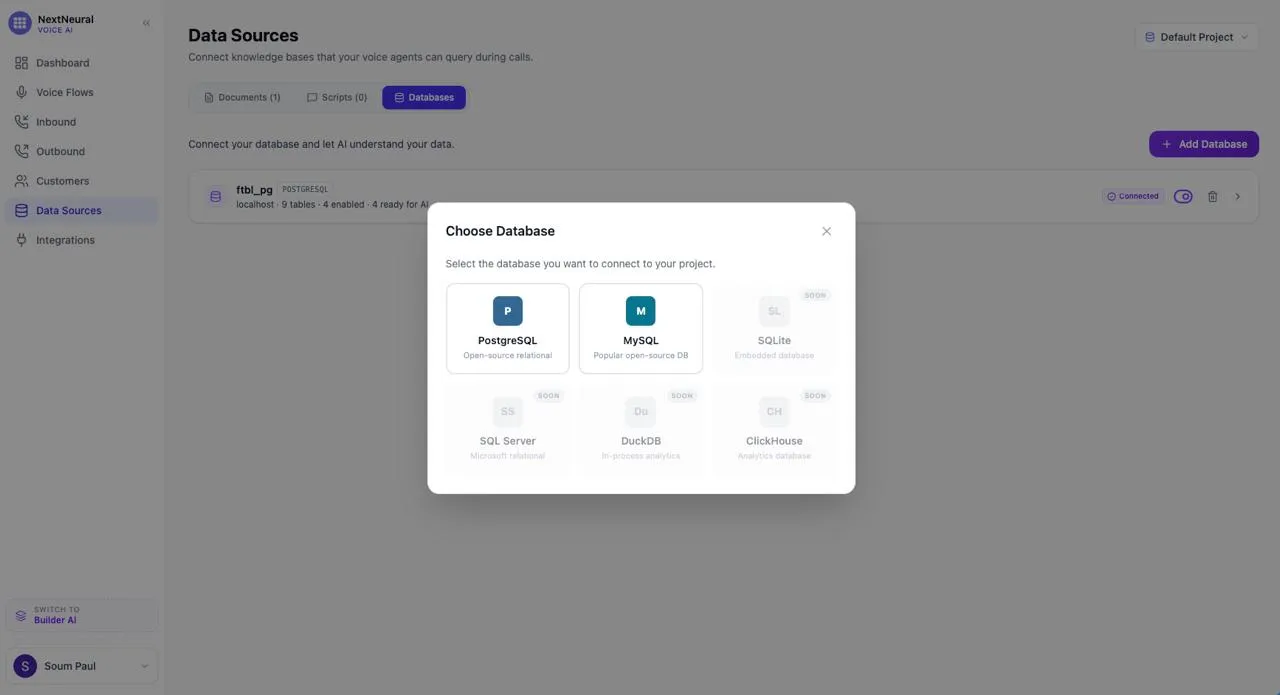
Upload your knowledge documents under the Documents tab. This is where you drop in any RTF, PDF, or text file that the agent should reference during calls — product details, FAQs, pricing, you name it. In our example, we uploaded paradiso_builders.rtf as the knowledge base.
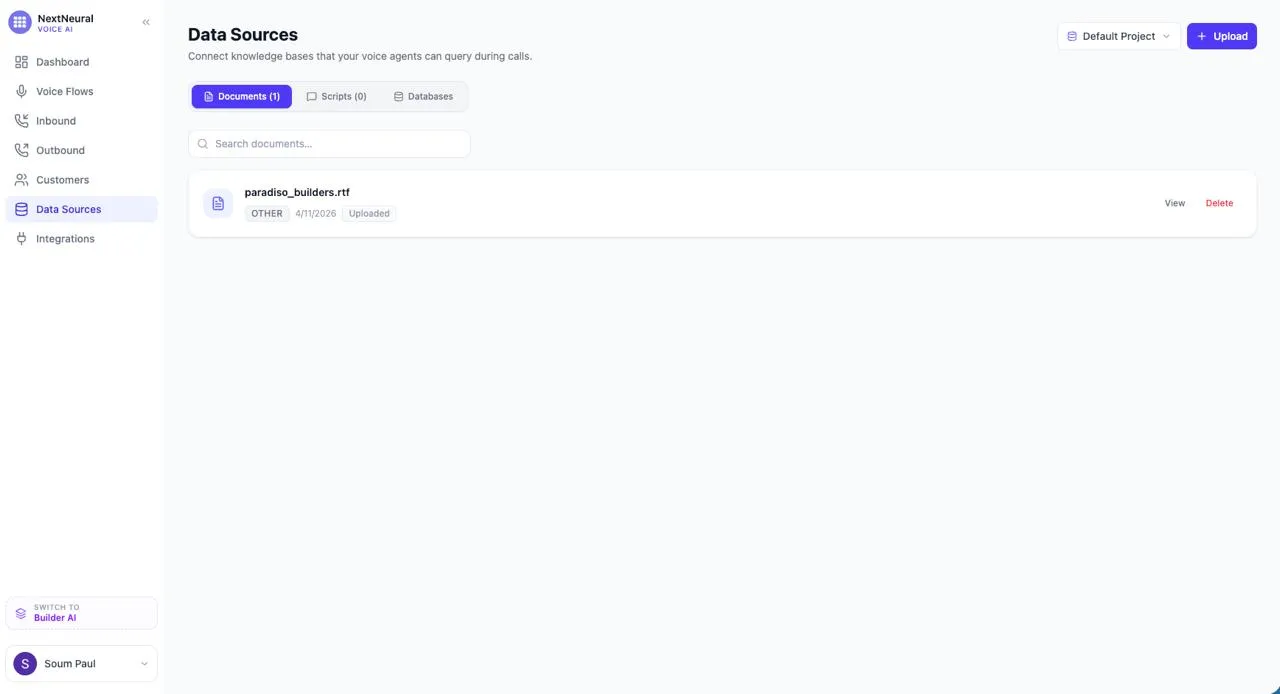
Connect your database if you want the agent to pull live data during calls. Click Add Database and choose from PostgreSQL or MySQL (SQLite, SQL Server, DuckDB, and ClickHouse are coming soon). This is especially useful if your customer records or inventory data live in a database you already manage.
Import and Organise Your Customer List
Before the first call goes out, your contacts need to be in the system. The Customers section lets you import your existing list in bulk or add contacts individually, each one tagged by segment so the campaign knows exactly who to dial.
The tags are where the targeting logic lives. A contact tagged trial_conversion_followup goes into a different campaign than one tagged low_engagement_reactivation or emi_default_risk. You’re not blasting your entire list with the same script — each segment gets a call that’s actually relevant to where they are in their relationship with your business.
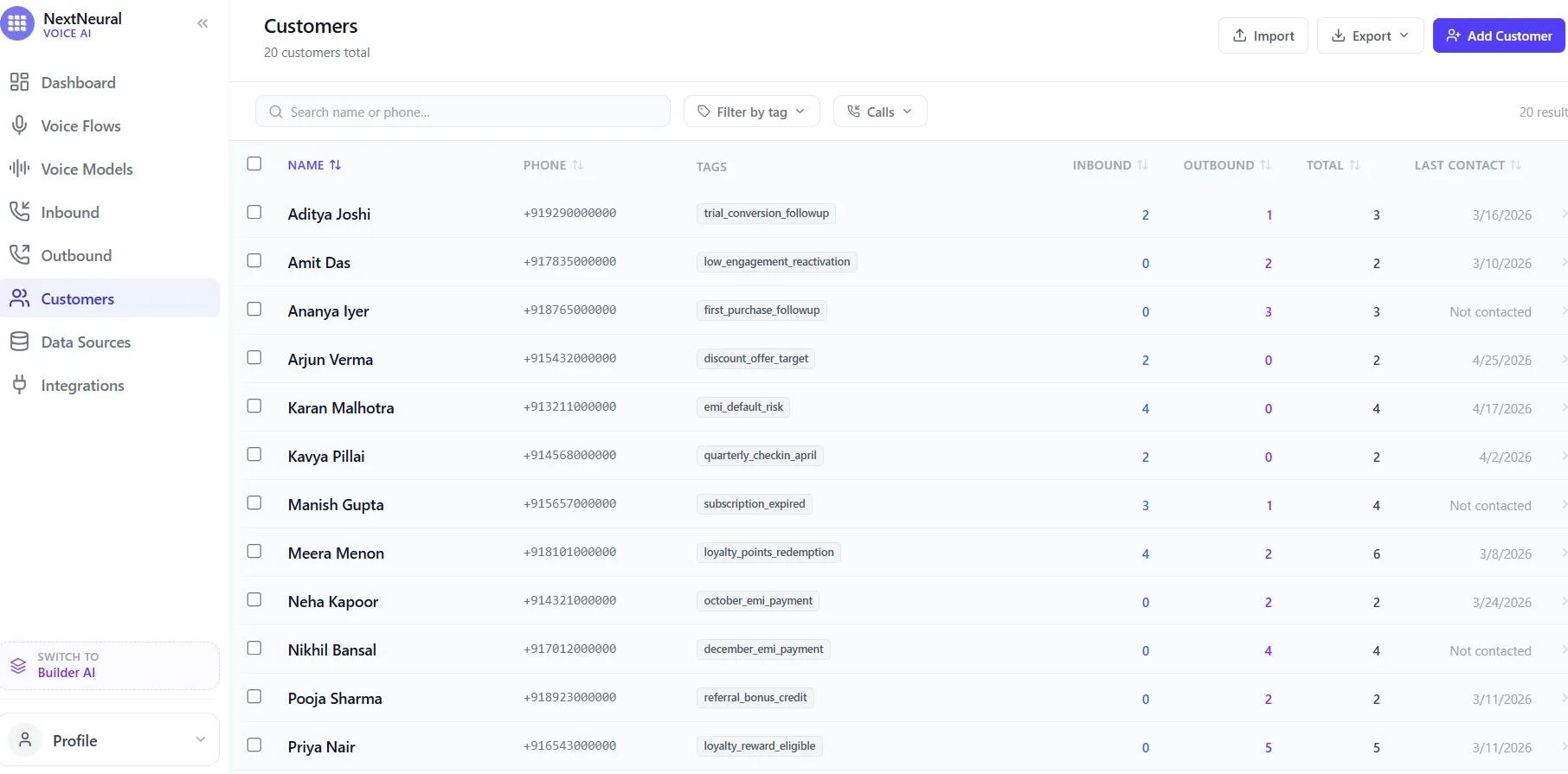
Once calls start going out, the same screen tracks everything. You can see at a glance how many inbound and outbound calls each contact has received, when they were last reached, and who hasn’t been contacted yet. The Import button on the top right handles bulk uploads, and Export lets you pull the updated list back out — with call history included — so it can flow back into your CRM or reporting tool.
Step 2: Connect Your Telephony Provider
Your AI agent needs a phone line to actually make calls. Go to Integrations in the sidebar and click on the Telephony Providers tab.
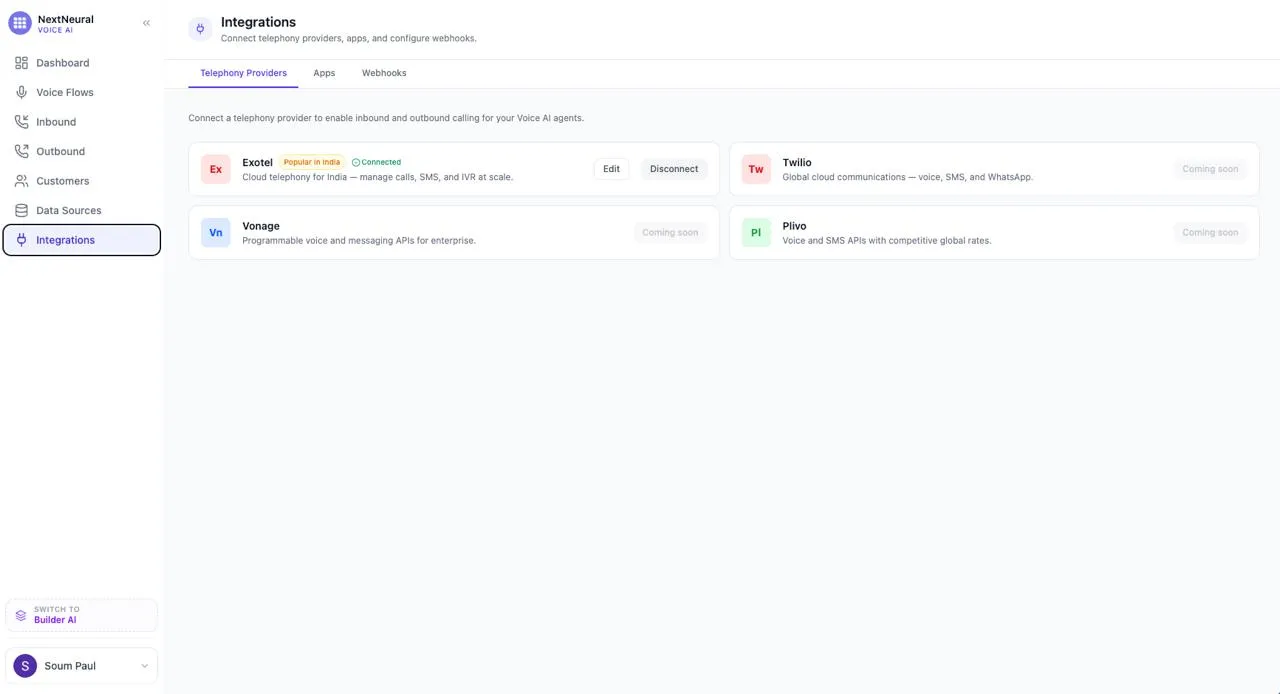
For businesses in India, Exotel is the go-to option. It’s already marked as “Popular in India” on the platform, and once connected, you’ll see it show as Connected with options to Edit or Disconnect. Twilio, Vonage, and Plivo are listed as coming soon for broader global coverage.
Connecting Exotel takes just a few minutes. You’ll need your Exotel API credentials, and you’re good to go.
Step 3: Create the Outbound Campaign
Now comes the fun part. Navigate to Voice Flows and choose to create an Outbound Campaign.
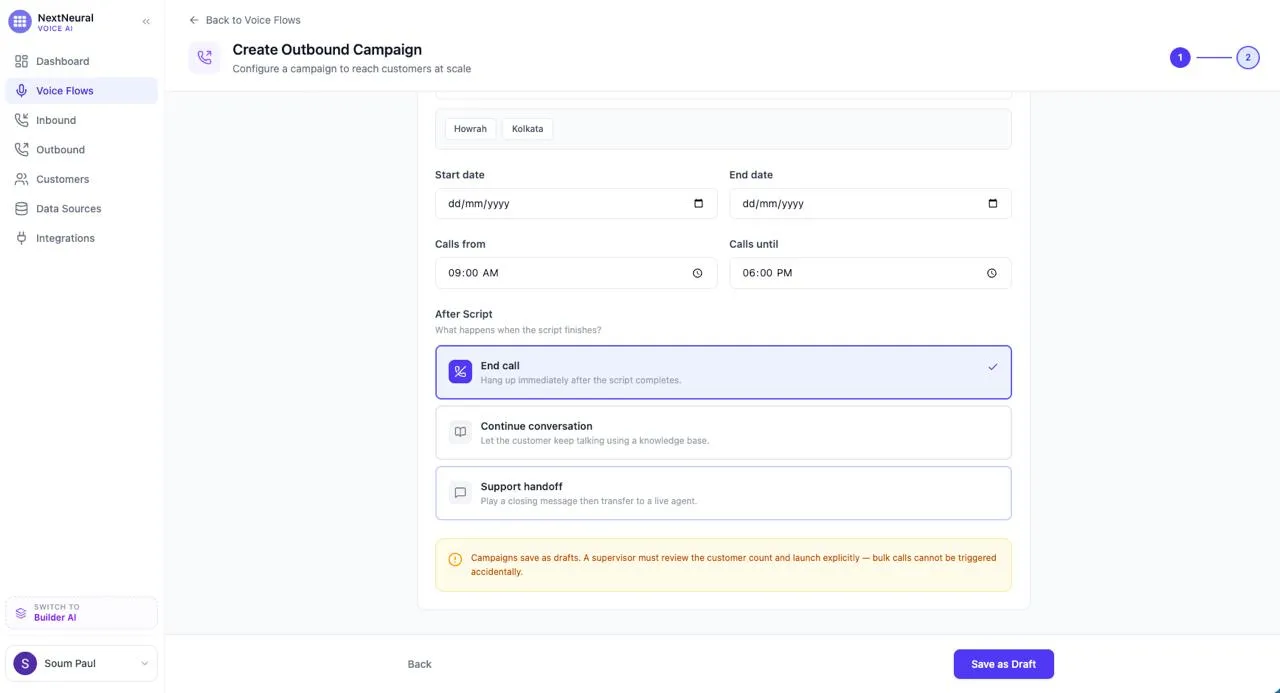
- Name your campaign. Give it a clear, descriptive name. We used “Outbound Sales Campaign” — simple and to the point.
- Attach a script (optional but recommended). If you’ve already created a script under Data Sources, you can attach it here. It defines what the agent says during the call. If you haven’t created one yet, you’ll see a prompt to do so.
- Set your target tags. This is how you define who gets called. Tags are essentially customer segments you’ve set up in the Customers section. In our example, we targeted customers tagged Howrah and Kolkata — so only contacts with at least one of those tags would be dialled.
- Set your schedule. Define the Start date, End date, and daily calling hours (we set 9:00 AM to 6:00 PM, which is a solid default for business hours).
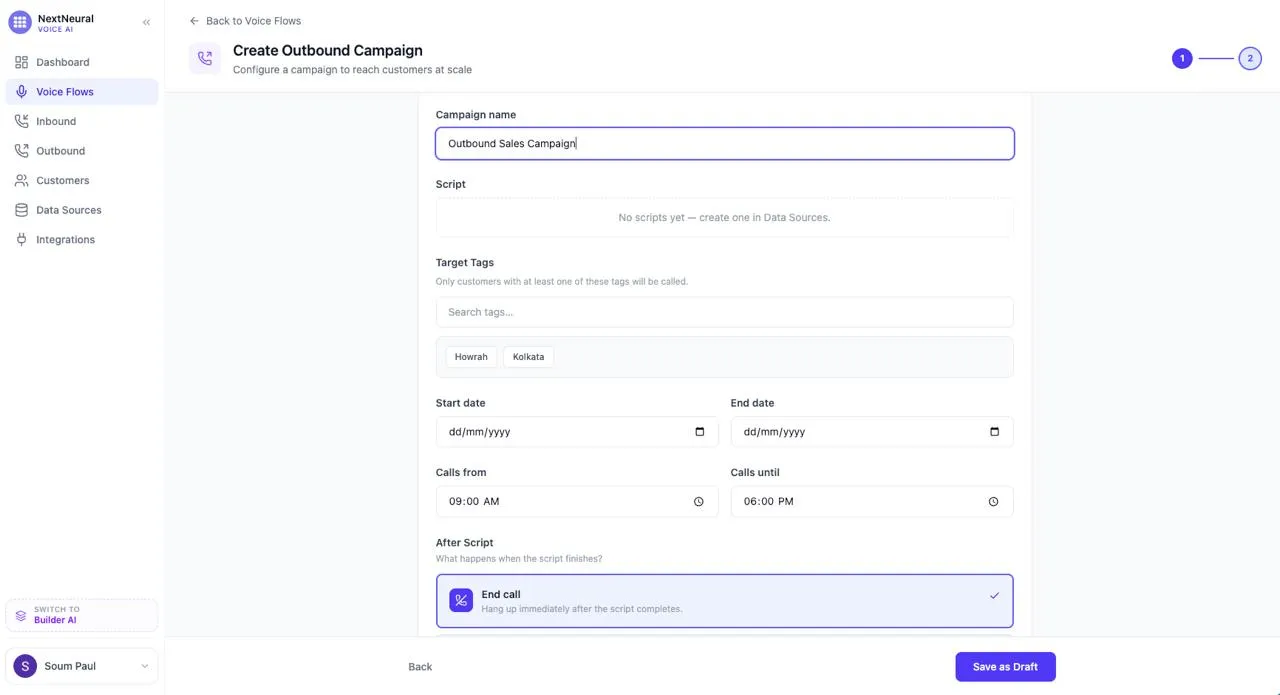
Choose what happens after the script:
- End call — hang up once the script finishes (selected in our case)
- Continue conversation — let the customer keep talking using the knowledge base
- Support handoff — play a closing message and transfer to a live agent
One important thing to note: campaigns save as drafts. A supervisor has to review the customer count and launch the campaign manually. This two-step process is intentional — no accidental bulk calls go out.
Step 4: Pick Your AI Voice
This is where you decide what your agent actually sounds like to your customers. NextNeural gives you two ways to go about it.
Option A: Clone Your Own Voice
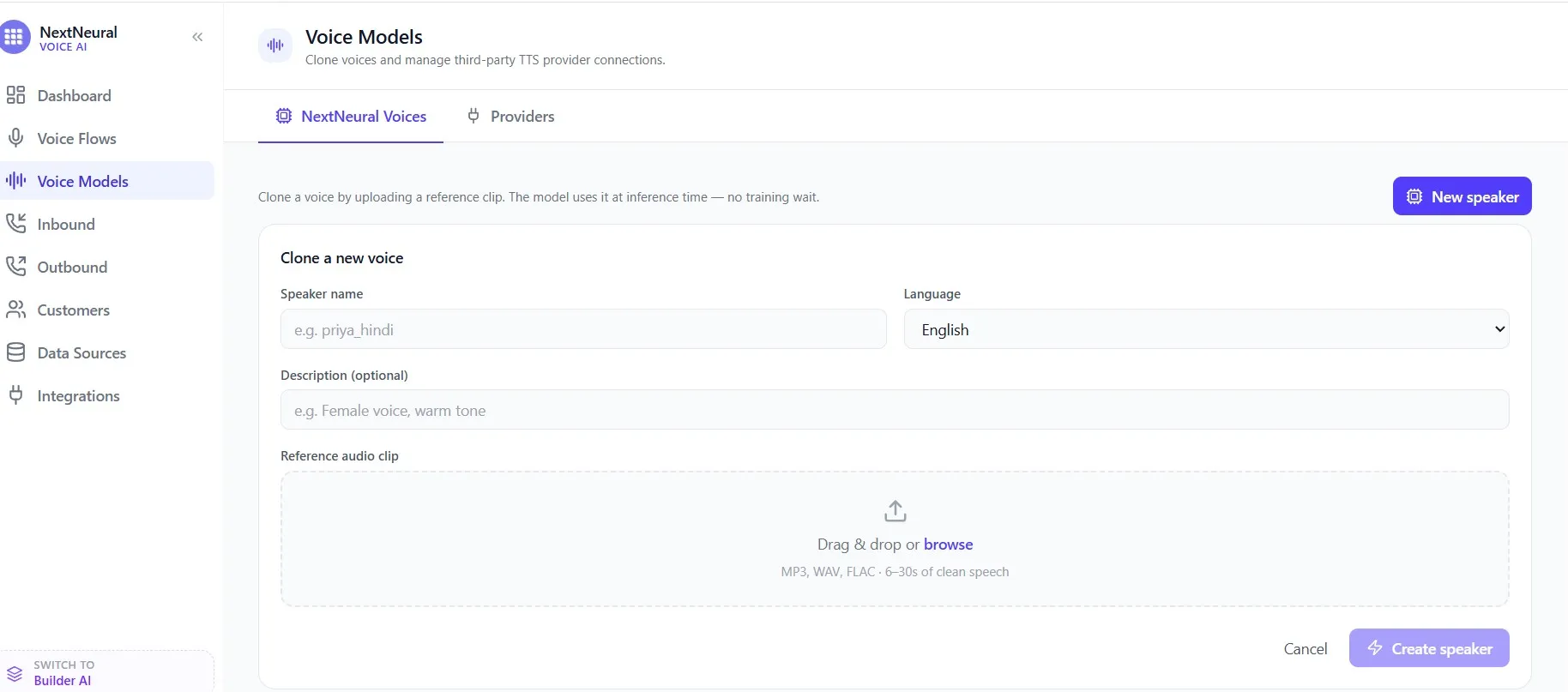
If you want your AI agent to sound like someone from your own team, head to Voice Models in the sidebar. Under the NextNeural Voices tab, click New Speaker and fill in a speaker name, select a language, add an optional description like “Female voice, warm tone”, and upload a reference audio clip in MP3, WAV, or FLAC format. The clip needs to be 6–30 seconds of clean speech — and that’s all it takes. No training wait, no technical setup.
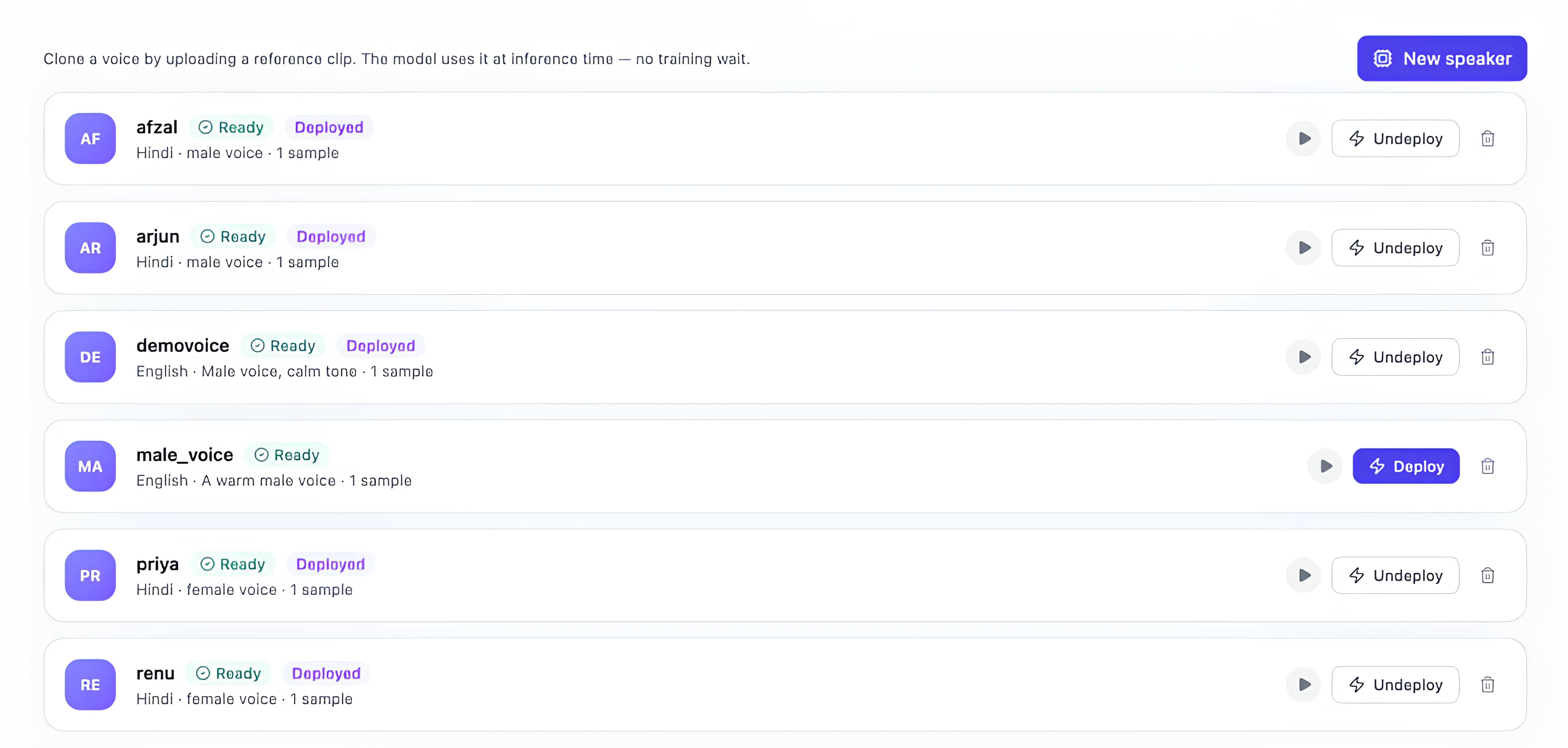
Once created, your voices show up in a list with their status marked as Ready or Deployed. You can preview any voice using the play button, deploy it to make it available for campaigns, or un-deploy it if you want to swap it out. In our example, voices like Arjun, Priya, Afzal, and Renu were all cloned Hindi voices already deployed and ready to use.
Option B: Pick from NextNeural’s Built-In Voices
If you’d rather skip voice cloning, NextNeural has a library of pre-built voice personas ready to go. When prompted during campaign creation, select your model (bulbul:v2 or bulbul:v3, with v3 being the recommended default), then choose your language from Bengali, English (India), Gujarati, Hindi, Kannada, Malayalam, Marathi, Odia, Punjabi, Tamil, and Telugu.
From there, pick a voice persona from the list. For a Hindi campaign, you’ll see options like Aayan, Aditya, Advait, Amit, Anand, Ashutosh, Dev, Gokul, Ishita, Kabir, and more. Hit the play button next to any name to preview before committing. We went with Dev for this campaign.
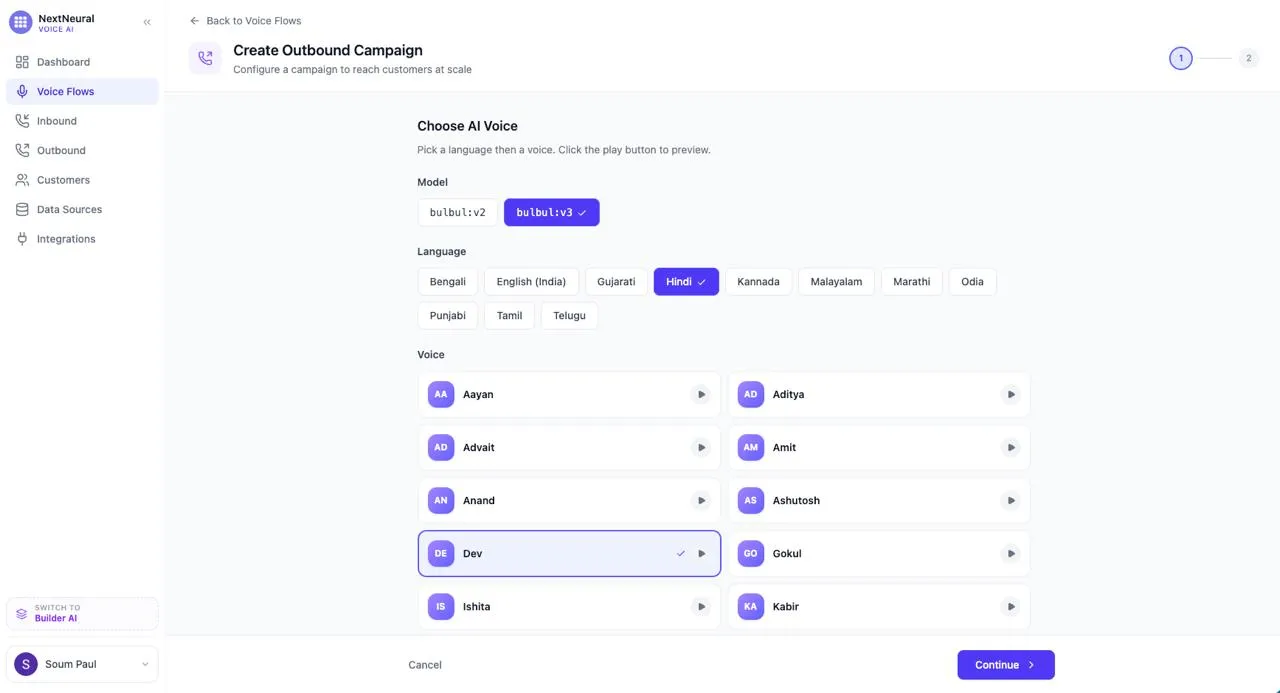
Once you’re happy with your voice, click Continue.
Step 5: Save As Draft and Launch
Click Save as Draft to preserve your campaign configuration. From here, a supervisor or admin can review the campaign — check which customers are targeted, confirm the count, and then launch it explicitly.
This two-step process (draft → launch) is intentional. It means no accidental bulk calls go out, and you always have a chance to double-check before dialling.
What Your Dashboard Looks Like Once You’re Live
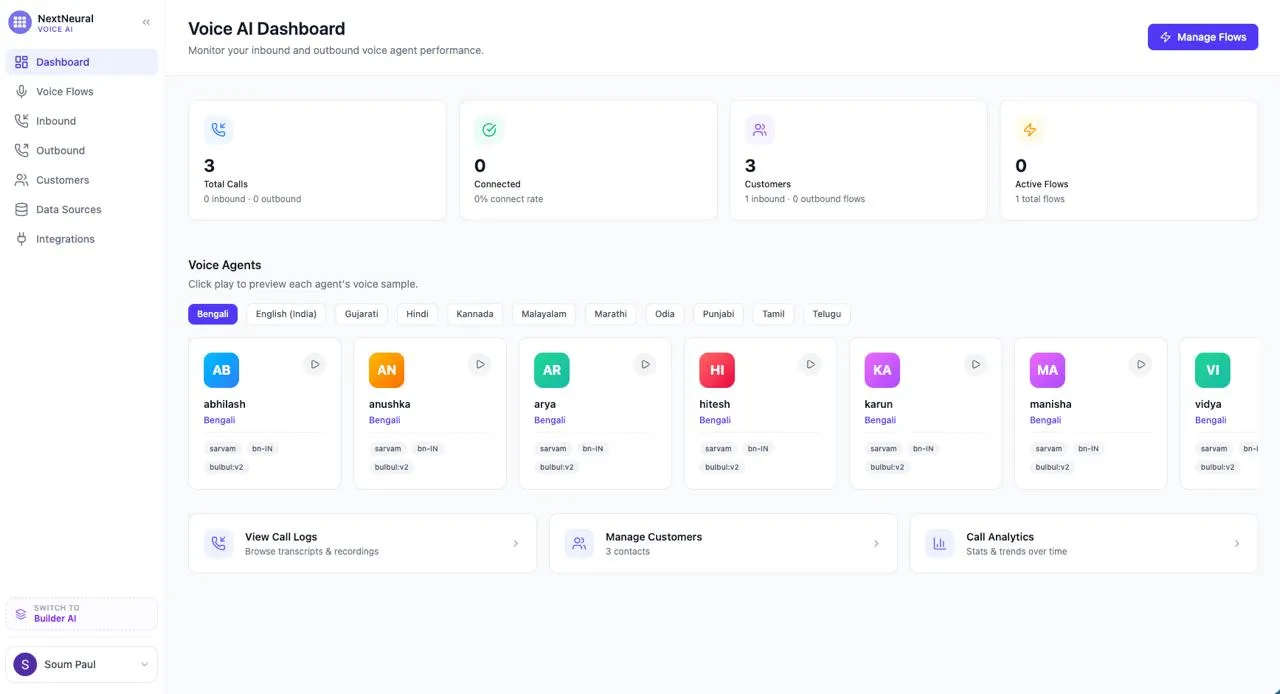
Once your campaign is running and your inbound lines are set up, the Voice AI Dashboard gives you a bird’s-eye view of everything:
- Total Calls — inbound and outbound combined
- Connected Rate — how many calls actually got through
- Customers Reached
- Active Flows
You can also browse your available voice agents by language, access call logs with transcripts and recordings, manage your customer contacts, and review call analytics — all from one place.
Is This Right for Your Business?
This tool makes most sense if you have a lead list larger than your team can realistically call, a clear script or product FAQ, and a defined customer segment to target. The setup — Exotel account, knowledge base, campaign configuration, voice selection — realistically takes a few hours the first time, not 30 minutes. But once it’s running, you’re not rebuilding it for every campaign.
It makes less sense if your sales process is heavily relationship-driven from the first call, if your lead list is under 100 contacts, or if you don’t yet have a clear sense of what you want the agent to say.
If you’re running a lean sales operation and watching good leads go cold because there simply aren’t enough hours in the day, this is the fix you’ve been waiting for. NextNeural Voice AI doesn’t ask you to hire more people, burn out the ones you have, or settle for the deals you managed to catch between everything else. It runs your outreach at scale, in your customers’ language, on your infrastructure, feeding results straight back into your CRM — while your team focuses on the conversations that actually need a human touch.
Get started on NextNeural today, and you’ll receive 5,000 free credits to build with. That’s enough to get your site up, explore the platform, and see for yourself how quickly a professional web presence can come together.
Sign up at nextneural.ai and claim your free credits to get started. If you want NextNeural.ai deployed for your organization or your team, reach out to us.
Ready to Transform Your Business with AI?
Join NextNeural today and deploy production-ready AI agents in minutes.
Build an Agent